Connect IESE Course Review to your AI
Ask Claude or ChatGPT about IESE electives, and it answers with real ratings and workload from our site. Without this connection, the AI does not have our data and it guesses.
Quick start
Copy the server address
Use the Copy button above.
Add it to your AI app as a custom connector
Claude: Customize → Connectors → + Add → Add custom connector, then paste the address.
ChatGPT: Choose the setup path for the ChatGPT experience you use. In the desktop app's Codex workspace, open Settings → MCP servers → Add server, choose Streamable HTTP, and paste the server address above. For ChatGPT on the web, enable Developer mode if it is available to your account, open ChatGPT Plugins, select +, and create a connection using the same server address. Your plan and workspace settings may affect which options appear.
The steps for each app are below.
Sign in when the app asks you to
When prompted, sign in with your IESE Course Review account (not your IESE portal password) and approve access. Depending on the setup path, sign-in may happen while creating the connection or when you first use it. The app can then read course information, ratings and, where available, your saved plan. Review text is not available through the connection. The app cannot change your plan or write reviews.
Ask a question
For example: “Which Finance electives have a workload under 5 hours a week?” More questions are below.
What it looks like
This is an example. The course names and numbers are not real.
Student: Which Finance electives have a workload under 5 hours a week?
search_courses with concentration “Finance” and a maximum of 5 hours.AI: I found 3 Finance electives with an average workload under 5 hours a week:
- Example Course A: 3.5 hours a week, rated 4.2 out of 5 (18 reviews)
- Example Course B: 4 hours a week, rated 3.9 out of 5 (11 reviews)
- Example Course C: 4.5 hours a week, not enough reviews for a rating yet
These are student opinions. Check the IESE portal before you bid.
How to connect
It takes about 3 minutes. You only do it once.
Claude
Works on the Free, Pro, Max, Team and Enterprise plans. On the Free plan you can add one custom connector. Official help: custom connectors in Claude (opens in a new tab).
Go to claude.ai. Open Customize, then Connectors.
Click + Add, then Add custom connector.
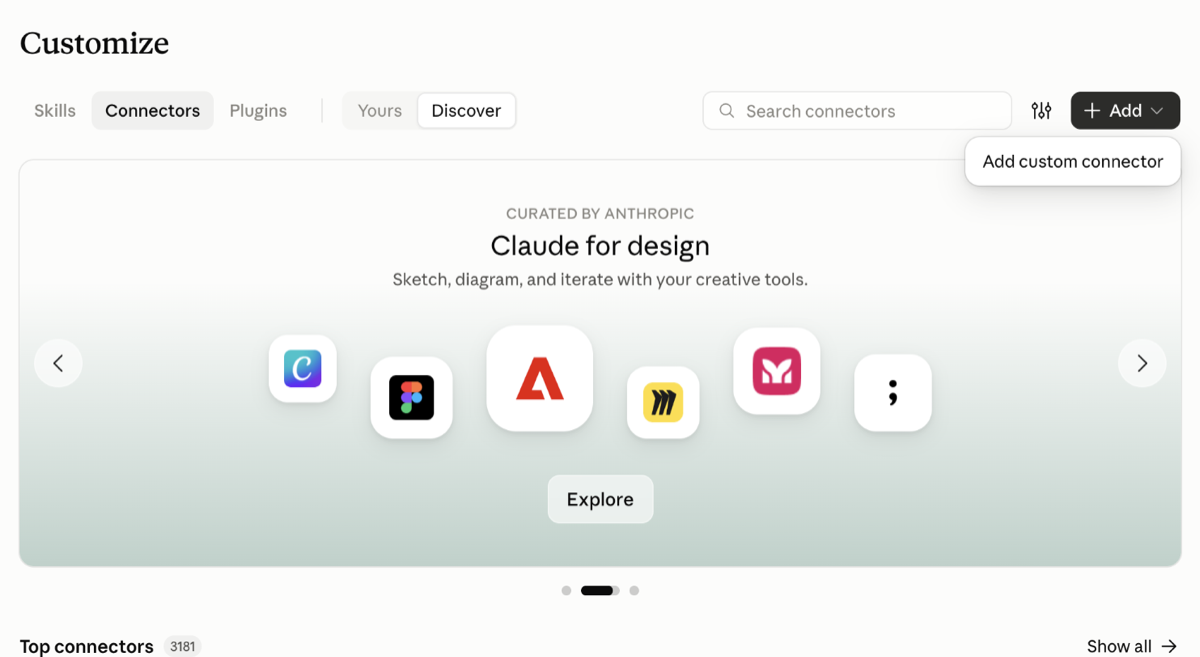
In Claude, open Customize, then Connectors. Click "+ Add" and choose "Add custom connector". Type the name “IESE Course Review”. Paste the server address. Click Add.
Screenshot coming soonThe "Add custom connector" dialog in Claude with the name "IESE Course Review" and our server URL filled in.Type a name, paste the server URL, and click Add. Click Connect. Our site opens. Log in with your IESE Course Review account and approve access.
Screenshot coming soonThe IESE Course Review sign-in and approval page that opens from the AI app.Sign in with your IESE Course Review account and approve access. In a chat, click +, then Connectors, and check that IESE Course Review is on. Then ask a question.
On a Team or Enterprise plan, an Owner must first add the connector in Organization settings → Connectors. After that, you click Connect in Customize → Connectors. A connector that you add on claude.ai also works in the Claude Desktop and mobile apps.
ChatGPT
Choose the setup path for the ChatGPT experience you use. The desktop and web paths are separate: a server that you add in the desktop app is not added to ChatGPT on the web. Your plan and workspace settings may affect which options appear. Menu names and availability can change. Official help: Model Context Protocol (desktop) (opens in a new tab), Connect and test your plugin (web) (opens in a new tab), ChatGPT Developer mode (opens in a new tab) and Developer mode and MCP apps in ChatGPT (opens in a new tab).
ChatGPT desktop app (Codex workspace)
In the desktop app's Codex workspace, open Settings → MCP servers → Add server.
Choose Streamable HTTP. Type the name “IESE Course Review” and paste the server address.
When prompted, sign in with your IESE Course Review account and approve access. Depending on the setup path, sign-in may happen while creating the connection or when you first use it.
ChatGPT on the web
ChatGPT on the web connects in Developer mode when that feature is available for your account and workspace. In a managed workspace, an admin may need to give you access and publish the app before other members can use it.
Go to chatgpt.com and open Settings. Find Developer mode under Security and login or Apps → Advanced settings, and turn it on. If it is not there, ask your workspace admin.
Open ChatGPT Plugins and select + (some accounts show Apps → Create). Type the name “IESE Course Review” and paste the same server address. Choose OAuth if ChatGPT asks, then click Scan Tools.
When prompted, sign in with your IESE Course Review account and approve access. Depending on the setup path, sign-in may happen while creating the connection or when you first use it. When the scan succeeds, finish creating the connection. In a workspace, the app can first appear as a draft.
Start a new chat. Choose IESE Course Review from the + → Developer mode menu or the tools menu. Then ask a question. If the app is not there, check if it is still a draft that a workspace admin must publish.
Gemini
The Gemini app (gemini.google.com and the mobile app) cannot add your own servers yet. Use Gemini CLI, Google's free Gemini app for the terminal. Official help: MCP servers with the Gemini CLI (opens in a new tab).
Install Gemini CLI and sign in with your Google account. Then open the file
~/.gemini/settings.jsonand add this entry:{ "mcpServers": { "iese-course-review": { "httpUrl": "https://iese.coursereview.xyz/api/mcp" } } }Start
geminiand type/mcp auth iese-course-review. Our site opens. Log in with your IESE Course Review account and approve access.Ask a question. Gemini calls our tools when it needs course data or your plan.
Other AI apps
Any app that supports remote MCP servers with sign-in (OAuth) can connect. Use the same server address. We do not support local (stdio) installs.
Questions to try
Copy a question and paste it into your AI app.
Which Finance electives have a workload under 5 hours a week?
Uses
search_coursesList the Strategy electives with a course rating of 4 or higher.
Uses
search_coursesTell me about NEG 4: what it covers, how many credits it has, and who teaches it.
Uses
get_course_detailsHow do students rate NEG 4? Tell me how many reviews the rating is based on.
Uses
get_course_ratingsCompare the weekly workload of the Negotiation electives. Which one is the lightest?
Uses
search_coursesReview my plan for the next term: pros, cons, and which courses clash.
Uses
get_my_planWhat can you do with my IESE course plan?
Uses
get_my_plan
For a term whose official schedule is published to our AI tools, the app can give session days and times and check your plan for clashes. A schedule that you see only on the Plan page may not be in the AI tools yet.
What the AI can do
The AI can only read. It cannot write reviews or change anything on our site.
search_coursesfinds electives by name, concentration, workload or rating.get_course_detailsgives the description, credits and professors of one course.compare_coursescompares 2–4 courses side by side with ratings, schedules and time clashes.list_termslists the terms that have an official schedule on our site.get_course_ratingsgives the student ratings and the weekly workload of one course.assess_bid_riskanalyzes bidding history (if available) to show how often a course fills in each bidding round.
Limits: 60 tool calls a minute and 1,000 a day for each student.
Ready-made prompts
Ask the AI using a prompt we have already written for you.
- Build me a clash-free {concentration} plan: Build a course plan for the International Business concentration (or another concentration the student chooses) that has no time clashes and reaches the credit targets.
- Review my plan: Summarize the student's saved course plan: clashes, credit progress, concentration progress, and next steps.
- Compare these electives: Compare 2–4 courses side by side: schedule, workload, ratings, professors, and trade-offs.
- Show me light electives: Search for courses with low weekly workload, optionally in a concentration, so the student can balance a busy semester.
Privacy
What the AI can read
- Course information: descriptions, credits, concentrations and professors.
- Course ratings and the weekly workload, from student reviews.
- Professor ratings. When a course has more than one professor, they all share one score, because reviews do not say which professor they rate.
- It cannot read the text of reviews. It sees only the numbers.
What the AI never gets
Names or emails of students, who wrote a review, who liked a review, your favorites, or data about other students.
Where the data goes
The answers from our tools go to your AI provider (for example Anthropic or OpenAI). The provider handles them under its own terms and privacy policy. Your settings in the AI app decide if the provider can use your chats to train its models. We do not sell our data to AI companies.
We keep a log of each tool call: your user ID, the tool name, the time and the size of the answer. We do not log your questions or the answers.
How to disconnect
- Claude: open Customize → Connectors, and remove IESE Course Review.
- ChatGPT: open Settings → Apps, choose IESE Course Review, and click Disconnect.
- Gemini CLI: remove the
iese-course-reviewentry from~/.gemini/settings.json. - Coming soon: you can also disconnect every AI app from your profile page on our site.
Terms of Service
Before you connect an AI app for the first time, you must accept version 2 of our Terms of Service. Section 7, "AI App Access", tells you what the AI app can read, what your responsibilities are, and when we can pause access. If you did not accept these terms yet, the connection page shows them to you.
Questions or problems? Use Send Feedback at the bottom of the page. Browse courses on the site